Surfaces
A surface is any API, MCP server, or tool layer you connect to Invoked. Add surfaces from the Exchange or bring your own REST/MCP endpoint, then give agents native access to them.
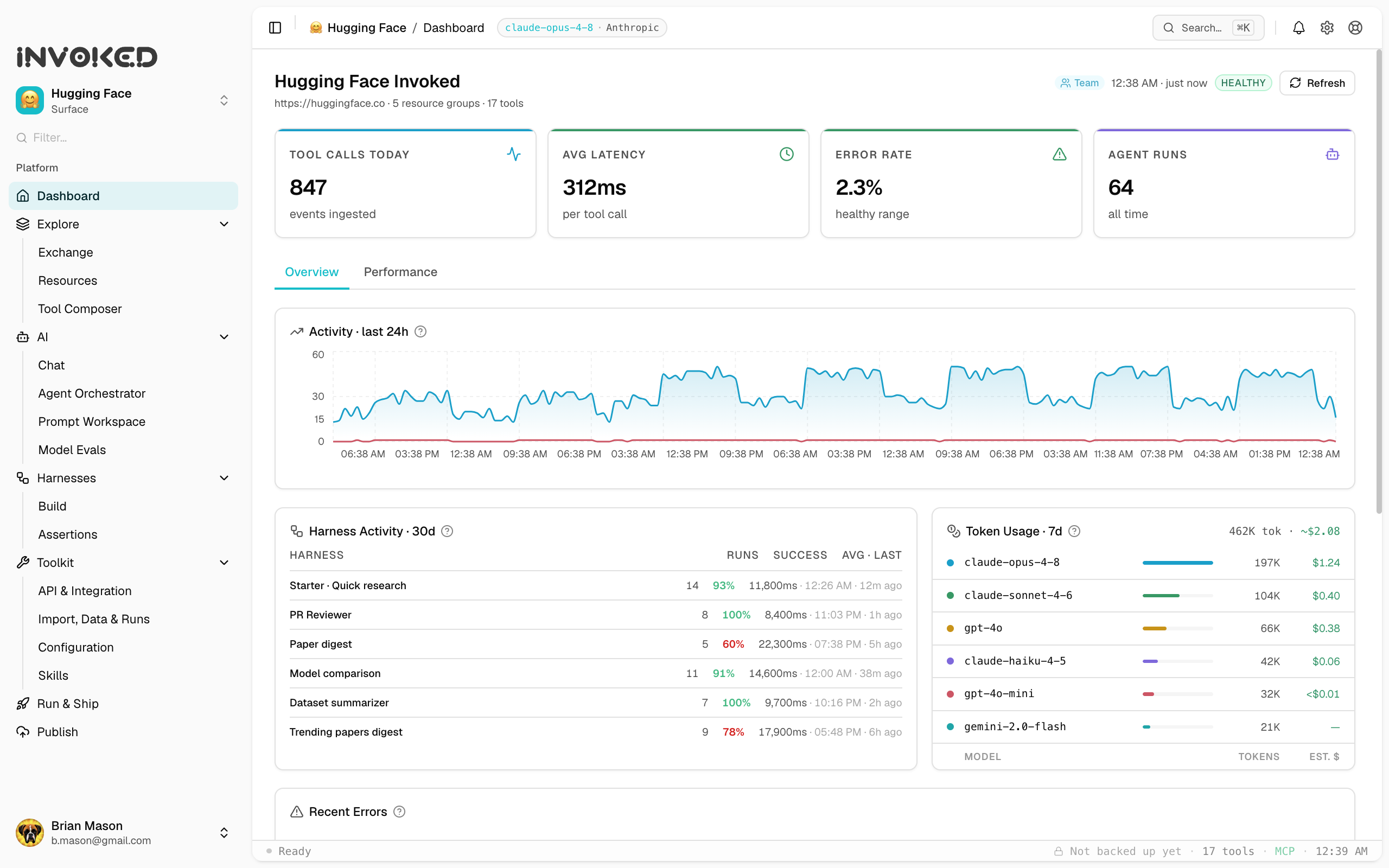
A surface is anything you connect Invoked to so your agents can use it — an MCP (Model Context Protocol) server, a REST API, or a hosted tool layer. Each surface becomes a first-class workspace you can chat against, orchestrate agents over, and measure.
Surfaces are the unit of integration in Invoked. Instead of wiring an API into bespoke code, you add it once as a surface and every part of the app — Chat, the Agent Orchestrator, Harnesses, Evals — can use its tools.
What can be a surface?
| Type | Example | How you add it |
|---|---|---|
| MCP server | A stdio or HTTP Model Context Protocol server | From the Exchange, or paste its command / URL |
| REST API | Any HTTP+JSON API | Import an OpenAPI/GraphQL spec or a cURL command |
| Hosted tool layer | A vendor's agent/tool endpoint | From the Exchange catalog |
Adding a surface
The fastest way is the Exchange — search the curated catalog, pick a surface, and add it in one step. Surfaces that need credentials prompt you for them at add time; secrets go straight into your operating system keychain and never touch disk in plaintext.
To bring your own:
- Open the surface switcher (top of the sidebar) and choose Add surface.
- Choose MCP (paste the server command or URL) or REST (connect by base URL + auth).
- Fill in any required configuration. Required secrets are stored in the keychain.
You can also import an API spec to generate a surface with its tools already wired: from Toolkit → Import, Data & Runs → Import, pick OpenAPI/Swagger, Postman, Insomnia, or cURL. Each import creates its own dedicated surface — see Importing. Spec import accepts JSON or YAML, and you can also start it right from Add surface → Import from spec.
Editing a surface
Surfaces are editable after you create them — so an imported API is fully operable, not a dead end. Hover a surface in the switcher and click the pencil to edit its:
- Name, description, and icon
- Base URL and authentication (scheme + header)
- Access token / API key — stored in the OS keychain
Because keys are write-only from the app, the token field shows “••••••• (unchanged)”: leave it blank to keep the existing token, or type a new value to replace it. Editing an MCP surface restarts its server so the new configuration takes effect immediately.
Custom icons
Give any surface your own icon — pick an emoji, upload an image, paste a logo URL, or drop in an SVG. It shows everywhere the surface appears, so a team's shared surfaces feel branded and recognizable.
The built-in Hugging Face and GitHub surfaces ship pre-configured and can't be edited — their edit control is shown but disabled, with a note explaining why. Everything you add yourself is fully editable.
Only surfaces added from the Exchange carry a catalog identity (a registryName). That identity is what lets a surface contribute anonymous, opt-in performance metrics back to the public Exchange pages — ad-hoc REST/MCP surfaces never do.
Surfaces and your workspace
Each surface is workspace-scoped: its tools, runs, skills, and stats live alongside it. Switching surfaces in the sidebar switches the entire working context. This is what makes Invoked's knowledge compound — the more you run a surface, the richer its local history, skills, and performance data become.
Sharing a surface with your team
On a team, you can share a surface so every teammate connects to the same tools in one step — and see that surface's combined reliability and latency across everyone. Hover a surface in the switcher and click the people icon to share it; credentials never travel (they stay in each person's keychain). See Sharing surfaces with your team.