Managing your team
Set up a team, invite teammates, assign roles, and handle seats — from buying a Team plan through to day-to-day administration.
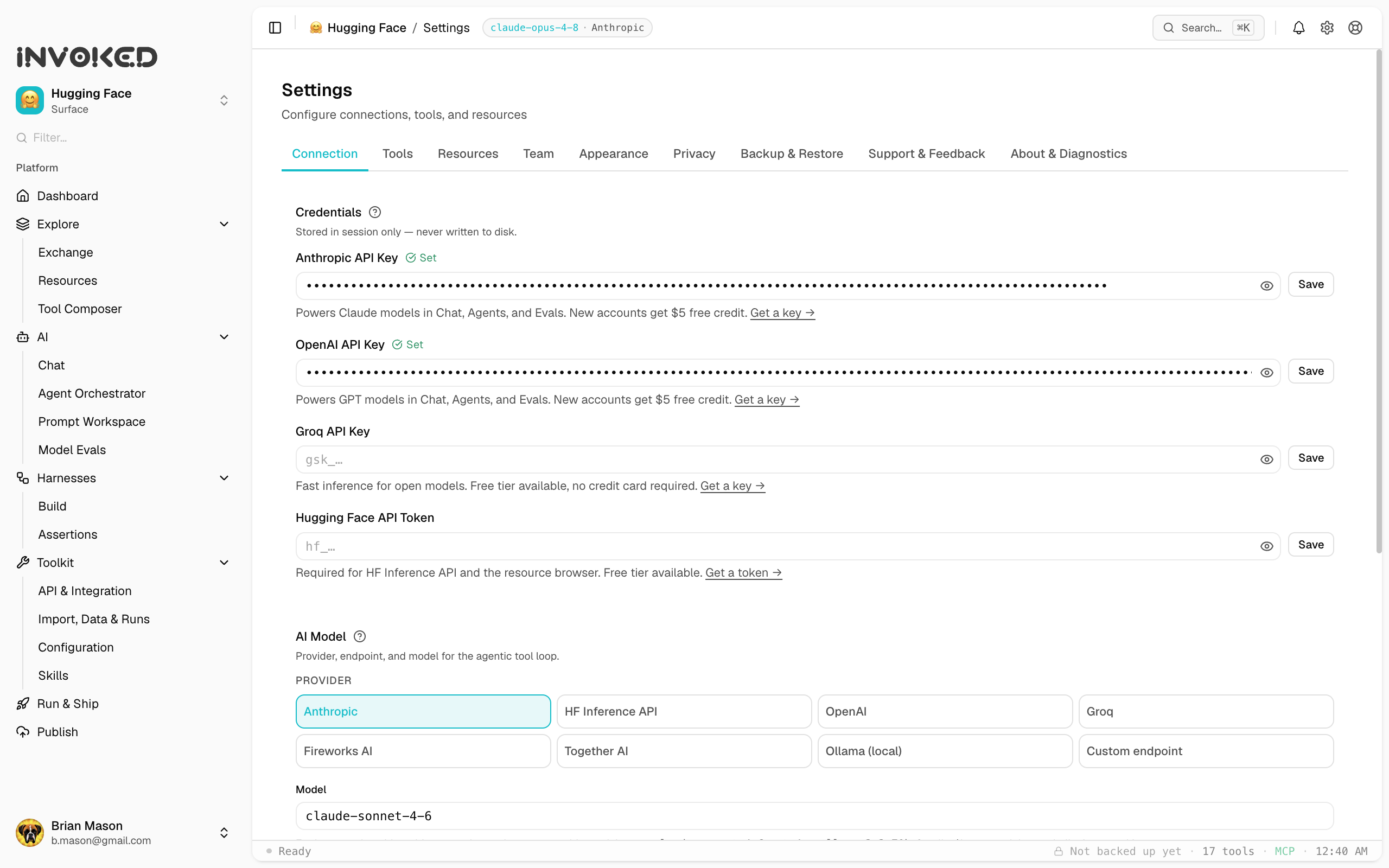
This guide covers setting up and running a team: from the initial purchase through invites, roles, and seats.
Setting up a team
When someone buys a Team plan, Invoked emails a setup link. Whoever opens it and signs in becomes the team's first admin — so the person who buys the plan doesn't have to be the person who runs it. A manager can buy seats for their team and forward the link to whoever will administer it.
The setup flow walks you through creating a login (or signing in) and creating your team workspace. Once it's done, open the desktop app, sign in with that same account, and go to Settings → Team.
Inviting teammates
In Settings → Team:
- Enter a teammate's email under Invite a teammate.
- Choose their role (Member or Admin).
- Click Invite.
They'll get an email to join. Once they accept and sign in, they appear in your members list and the seat count updates. Pending invitations show until accepted and can be revoked.
Roles & admin transfer
- Promote a member to admin with Make admin.
- Demote an admin back to member with Demote.
To transfer ownership, promote the new person to admin, then demote yourself (or have them remove you). Multiple admins are allowed.
Invoked enforces one rule: a team must always have at least one admin. You can't demote or remove the last admin — promote someone else first.
Seats
Your plan includes a number of seats (set at purchase). Each member and each pending invitation counts against the seat limit, shown as used / total in the Team tab. To add seats, update your subscription.
Removing a member
Click the remove icon next to a member. Their seat frees up immediately. They lose access to the team's shared skills and analytics, but anything stored locally on their own machine is unaffected.